Watching IPTV directly on a Smart TV can be one of the simplest ways to enjoy live TV, sports, movies and series without adding another streaming box to your setup.
Many modern televisions support IPTV player applications, although the exact installation process depends on the TV brand, operating system and apps available for your device.
In this guide, we’ll explain how an IPTV Smart TV setup in Malta works, what you need before starting and what to check if you experience problems.
If you haven’t chosen a subscription yet, visit SFLEX IPTV Malta to explore the available options.
What Do You Need to Watch IPTV on a Smart TV?
Before getting started, you’ll generally need three things: a compatible Smart TV, a stable internet connection and valid IPTV subscription details.
You’ll also need a compatible IPTV player. The exact player available to you will depend on your television’s operating system and app store.
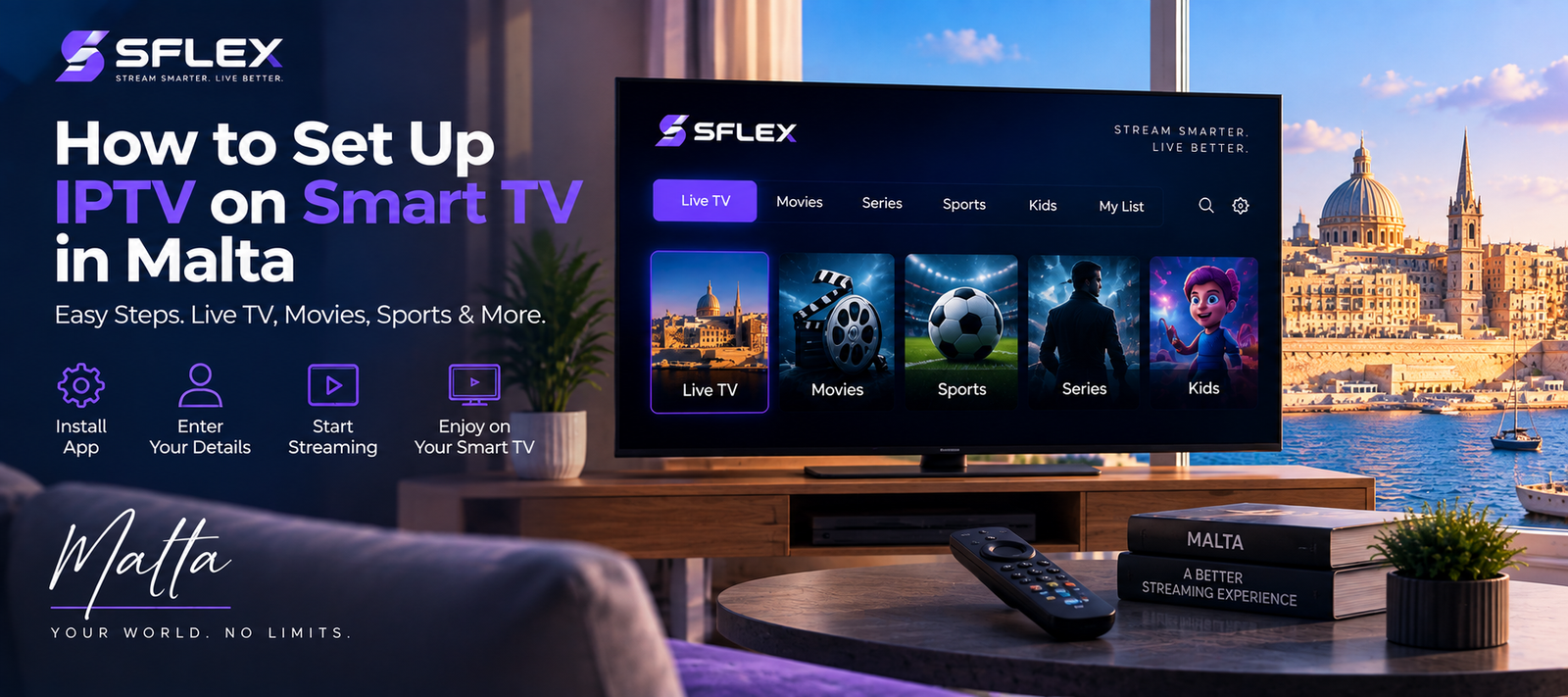
Once everything is ready, the basic process involves installing the player, entering your subscription details and allowing the application to load the available content.
For instructions covering other devices as well, visit our IPTV Installation Guide Malta.
Step 1: Check Your Smart TV
First, identify the brand and operating system of your television.
Different Smart TVs use different software platforms. Therefore, an IPTV application available on one television may not necessarily be available on another.
Open your TV’s app store and check which compatible IPTV players are available.
Also, make sure your television is connected to the internet before continuing.
Step 2: Install a Compatible IPTV Player
Next, install a compatible IPTV player from the app store available on your television.
Remember that the IPTV player and IPTV subscription are two different things.
The player is the application used to display and navigate the content. Your subscription provides the account details used with that application.
Follow the installation instructions displayed by your television and open the application once installation is complete.
Step 3: Enter Your IPTV Details
After opening your IPTV player, you’ll need to enter the subscription information provided by your IPTV service.
Depending on the player and subscription setup, this may include information such as a username, password and server address.
Enter the information exactly as provided.
Even a small typing mistake or an extra space can prevent the application from connecting successfully.
SFLEX customers who need additional setup help can use the SFLEX IPTV Installation Guide.
Step 4: Allow the Content to Load
Once your account details have been accepted, the application may need some time to load the available categories and programme information.
The exact interface depends on the IPTV player you’re using.
You may see sections for live television, movies, series or other available content.
At this point, open a few streams to make sure playback is working correctly.
Step 5: Test Streaming Quality
Don’t stop after confirming that one channel opens.
Test different types of content and pay attention to loading times, picture quality and connection stability.
For example, try an available HD stream and compare it with other content.
If you’re interested in testing SFLEX before purchasing a subscription, you can request a 24-hour IPTV Trial Malta and evaluate the service on your own Smart TV.
Is Wi-Fi Good Enough for IPTV on Smart TV?
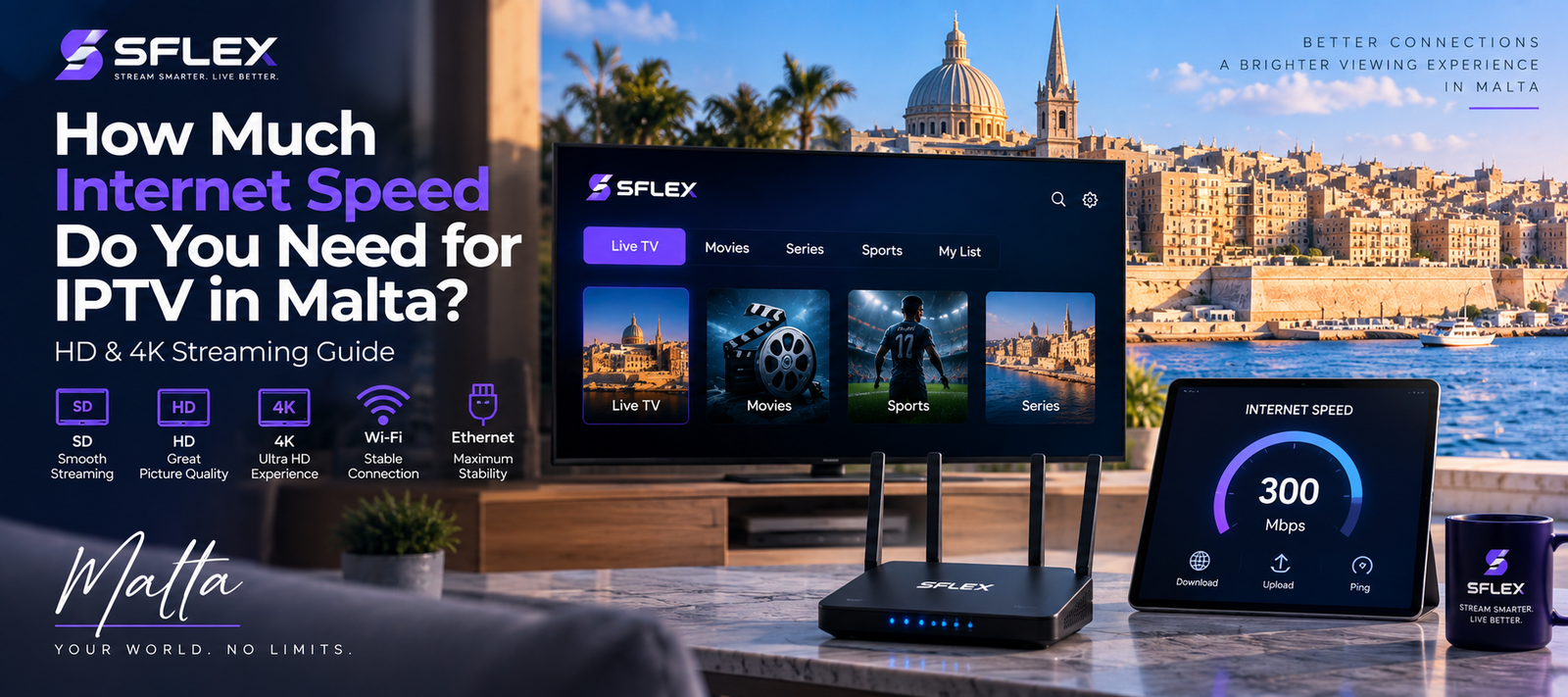
Wi-Fi can work well when your television has a strong and stable connection to your router.
However, the experience can vary according to the distance from the router, walls, wireless interference and the quality of the TV’s networking hardware.
If your television supports Ethernet and is close enough to your router, a wired connection can provide another option.
We’ve covered this topic in more detail in our Internet Speed for IPTV Malta guide.
Why Is IPTV Buffering on My Smart TV?
Buffering doesn’t always mean there is a problem with your IPTV subscription.
Several factors can affect playback.
Weak Wi-Fi
If your television is far from your router, the Wi-Fi signal may be weaker than expected.
Try moving the router where practical or test the television with a wired connection if Ethernet is available.
Other Devices Using the Internet
Streaming, downloads, gaming and video calls on other devices can use part of your available bandwidth.
Therefore, test IPTV when your network is under its normal household load.
Smart TV Performance
Older Smart TVs can sometimes feel slower because they have less processing power and memory than modern streaming devices.
If the service works well on another device but struggles on your television, the Smart TV itself may be contributing to the problem.
IPTV Player Issues
Applications can occasionally require updates or develop temporary problems.
Check whether your player is up to date and restart both the application and television before troubleshooting further.
Should You Use a Smart TV or Streaming Device?
Using IPTV directly on your television is convenient, but it isn’t necessarily the right setup for everyone.
If your Smart TV has a suitable IPTV player and performs smoothly, there may be little reason to add another device.
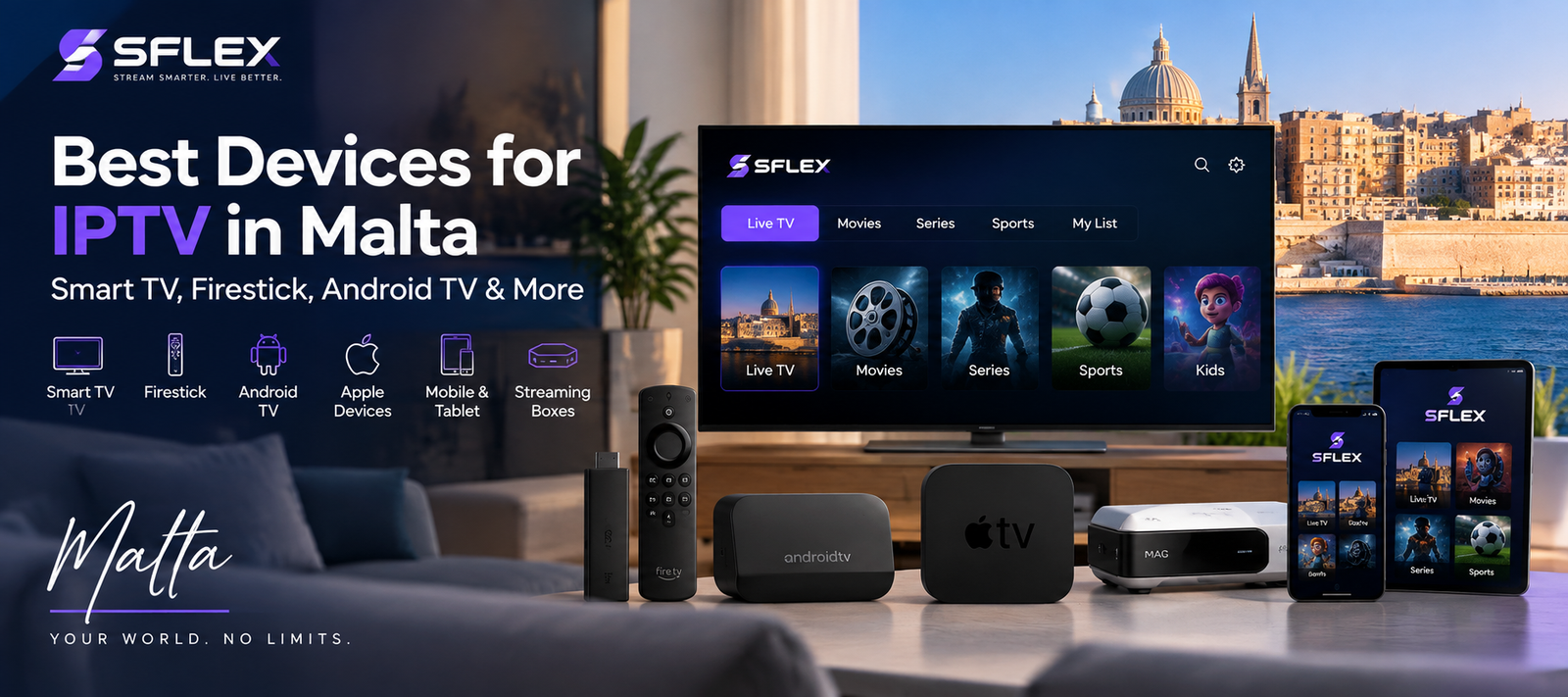
However, if the TV is older, slow or has limited app availability, a Fire TV or Android TV device may provide more flexibility.
Read our Best Devices for IPTV in Malta guide to compare Smart TVs, Firestick, Android TV, Apple devices and dedicated streaming boxes.
Can You Test IPTV on Your Smart TV First?
Yes. In fact, testing the service on the television you intend to use regularly is a useful way to evaluate your setup.
It lets you check whether your preferred IPTV player works properly, how quickly content loads and whether your internet connection remains stable during streaming.
SFLEX offers a free 24-hour IPTV trial in Malta with no credit card required.
That allows you to test compatibility before deciding whether to continue with a paid subscription.
What If My Smart TV Doesn’t Have a Compatible IPTV App?
You don’t necessarily need to replace the television.
An external streaming device can add a separate app platform to a TV with an HDMI input.
Depending on your preferences, this could include a Fire TV device, Android TV box or another compatible streaming device.
This can also be useful when your television’s built-in operating system has become slow or no longer receives the applications you want.
Frequently Asked Questions
Can I install IPTV directly on a Smart TV?
Many modern Smart TVs support compatible IPTV player applications. However, app availability depends on the television brand, operating system, model and region.
Do I need a streaming box for IPTV?
Not necessarily. If your Smart TV supports a compatible IPTV player and performs well, you may be able to stream directly through the television.
Why won’t my IPTV details work?
Check that your username, password and server information exactly match the details you received. Look for typing mistakes and accidental spaces. If you’re an SFLEX customer and still have trouble, follow the IPTV Installation Guide Malta.
Is Ethernet better than Wi-Fi for Smart TV IPTV?
Ethernet can provide a more consistent wired connection where supported. However, a strong and stable Wi-Fi connection can also work well.
Can I test SFLEX on my Smart TV before subscribing?
Yes. You can request an IPTV Trial Malta and test the service on a compatible Smart TV before choosing a paid plan.
Start Watching IPTV on Your Smart TV
Setting up IPTV on a compatible Smart TV can be straightforward: connect the television to the internet, install a suitable IPTV player, enter your subscription details and test playback.
If you need help, follow our IPTV Installation Guide Malta.
You can also explore SFLEX IPTV Malta or request a free 24-hour IPTV trial to test your Smart TV setup before subscribing.